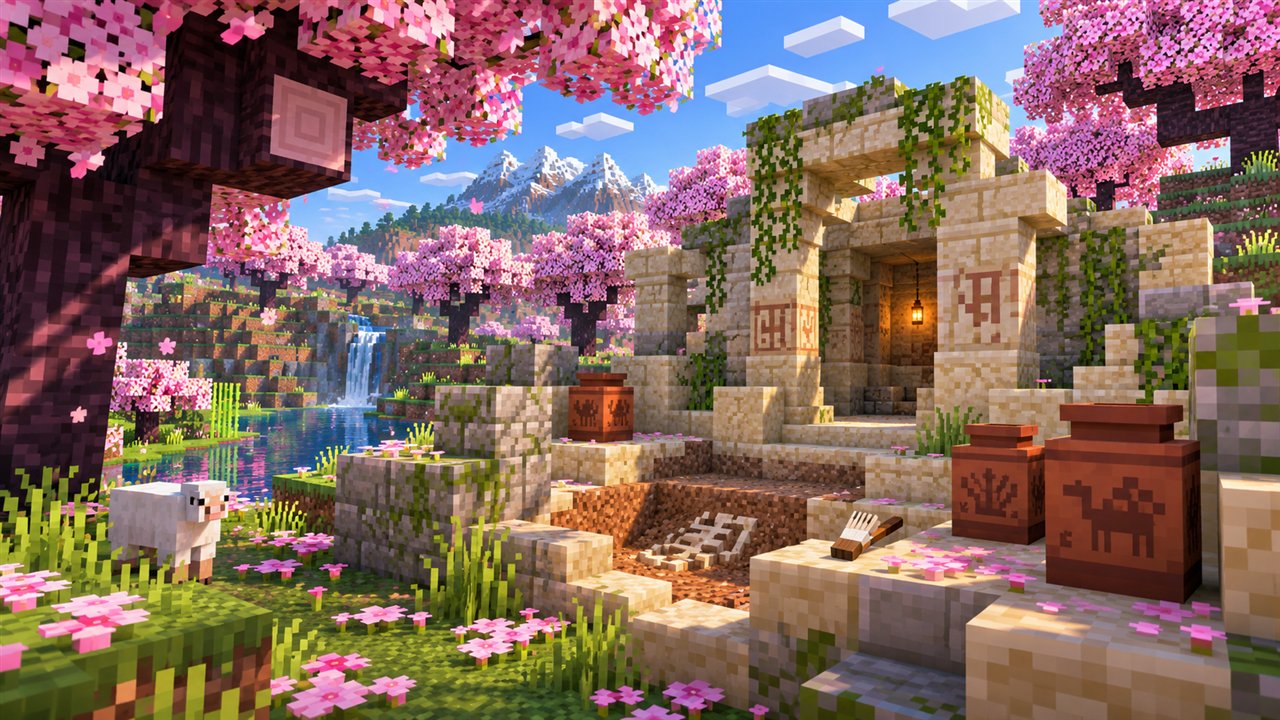
OptiFine 1.20.1 remains one of the most popular combinations in Minecraft Java Edition, largely because 1.20.1 became a long-lasting favourite for modded play. Many Forge mods, modpacks and shader packs target this version, which makes it a reliable base for players who want OptiFine's graphics options alongside a large modding ecosystem.
This guide covers choosing the right OptiFine build for 1.20.1, installing it with or without Forge, setting up shaders and adjusting settings for smooth gameplay on different computers.
Why Players Choose OptiFine on 1.20.1
Minecraft 1.20.1 is part of the Trails and Tales update family, and it stayed in wide use long after newer versions arrived. Mod developers often kept supporting it, so players can build large modpacks on a stable foundation.
For OptiFine users, that wide support brings practical advantages:
- A mature selection of shader packs and HD resource packs tested on this version.
- Plenty of Forge mods that run alongside OptiFine.
- Well-known troubleshooting steps shared by a large player community.
Choosing the Correct OptiFine Build for 1.20.1
On the official OptiFine website, find the 1.20.1 heading in the version list and pick the newest build listed under it. Make sure the label says 1.20.1 exactly, because builds for 1.20, 1.20.2 or 1.20.4 will not work correctly on this version.
If you plan to use Forge, read the notes beside the download. They often mention a Forge version the build was tested with, which helps you avoid crashes later.
| Minecraft version | Use OptiFine built for |
|---|---|
| 1.20.1 | 1.20.1 only |
| 1.20.2 | 1.20.2 only |
| 1.20.4 | 1.20.4 only |
| 1.21.x or 26.1.x | The matching newer build |
Installing OptiFine 1.20.1 Without Forge
The standalone installer is the easiest route if you only want OptiFine. It creates a dedicated launcher profile that keeps your vanilla installation untouched.
- Launch vanilla Minecraft 1.20.1 once from the official launcher, then close it.
- Open the downloaded OptiFine 1.20.1 installer with Java.
- Click Install and wait for the success message.
- Select the OptiFine profile in the launcher and press Play.
Our full installation guide explains what to do if the installer will not open or the profile does not appear.
Installing OptiFine 1.20.1 with Forge
Forge for 1.20.1 is widely used, which makes this one of the most common OptiFine Forge setups. Install Forge for 1.20.1, launch it once, then place the OptiFine 1.20.1 jar in the mods folder.
Matching Forge and OptiFine
If the game crashes, compare your Forge version with the one mentioned in the OptiFine download notes. Switching to the noted Forge release often solves the problem immediately.
Testing with Other Mods
Start with Forge and OptiFine alone, then add mods in small groups. Rendering and performance mods are the most likely to conflict. The OptiFine Forge guide covers this process in depth.
Setting Up Shaders on OptiFine 1.20.1
Many shader packs support 1.20.1, giving you a wide choice of looks from soft, light packs to detailed cinematic ones. To add one, open Video Settings, click Shaders, press Shaders Folder and copy the pack's .zip file into it.
Back in the game, select the pack from the list. If frame rates drop, lower shadow quality in the pack's options or try a lighter pack better suited to your graphics card.
Shader packs update separately from OptiFine. If a pack looks wrong on 1.20.1, check whether a newer version of that pack is available.
Recommended Settings for Smooth Play
Good settings depend on your hardware, but a few adjustments help almost every system running 1.20.1 with OptiFine.
- Set render distance to a level your computer handles comfortably, then raise it gradually.
- Use fast graphics and reduce particles on older laptops.
- Turn off animations you do not notice, such as some fire or water effects.
- Enable connected textures and custom sky only if your resource pack uses them.
For an explanation of every menu, read How to Use OptiFine.
Resource Packs on OptiFine 1.20.1
Many detailed resource packs list 1.20.1 support and rely on OptiFine features such as connected textures, custom skies and random mob textures. With OptiFine installed, these packs can display their full design instead of falling back to simpler textures.
Add packs through Options and Resource Packs, then open the Quality menu in Video Settings to make sure the related options are switched on. Higher-resolution packs need more graphics memory, so drop to a lower resolution version if loading becomes slow.
Keeping a 1.20.1 Profile Stable
Because 1.20.1 profiles often hold large mod lists and long-running worlds, stability matters. Keep regular backups, update mods one at a time and avoid mixing builds intended for other 1.20 releases.
- Back up your saves folder before every change.
- Keep a copy of a working mods folder.
- Record the Forge and OptiFine versions that work well together so you can rebuild the profile quickly.
OptiFine 1.20.1 FAQs
Can I use an OptiFine 1.20.4 build on 1.20.1?
No. OptiFine builds are tied to exact versions. Use a build labelled 1.20.1 to avoid crashes and missing features.
Is 1.20.1 a good version for OptiFine and mods?
Yes. Its long-lasting popularity means many Forge mods, shader packs and resource packs support it, making it a dependable choice for modded play.
Why are OptiFine settings missing in my 1.20.1 Forge game?
The jar may be in the wrong mods folder, the wrong profile may be selected, or the build may not match your version. Check each of these in turn.
Do I need Forge to use OptiFine on 1.20.1?
No. The standalone installer creates a 1.20.1 OptiFine profile without Forge. Forge is only needed if you also want to run Forge mods alongside OptiFine in the same game profile.
Conclusion
OptiFine 1.20.1 offers a dependable mix of graphics options, shader support and broad mod compatibility. Choose the build labelled exactly 1.20.1, install it standalone or through Forge and check the download notes for the recommended Forge version.
From there, add shaders and resource packs gradually and tune settings to match your computer. Use the version finder in our download section to confirm what to look for before you begin.