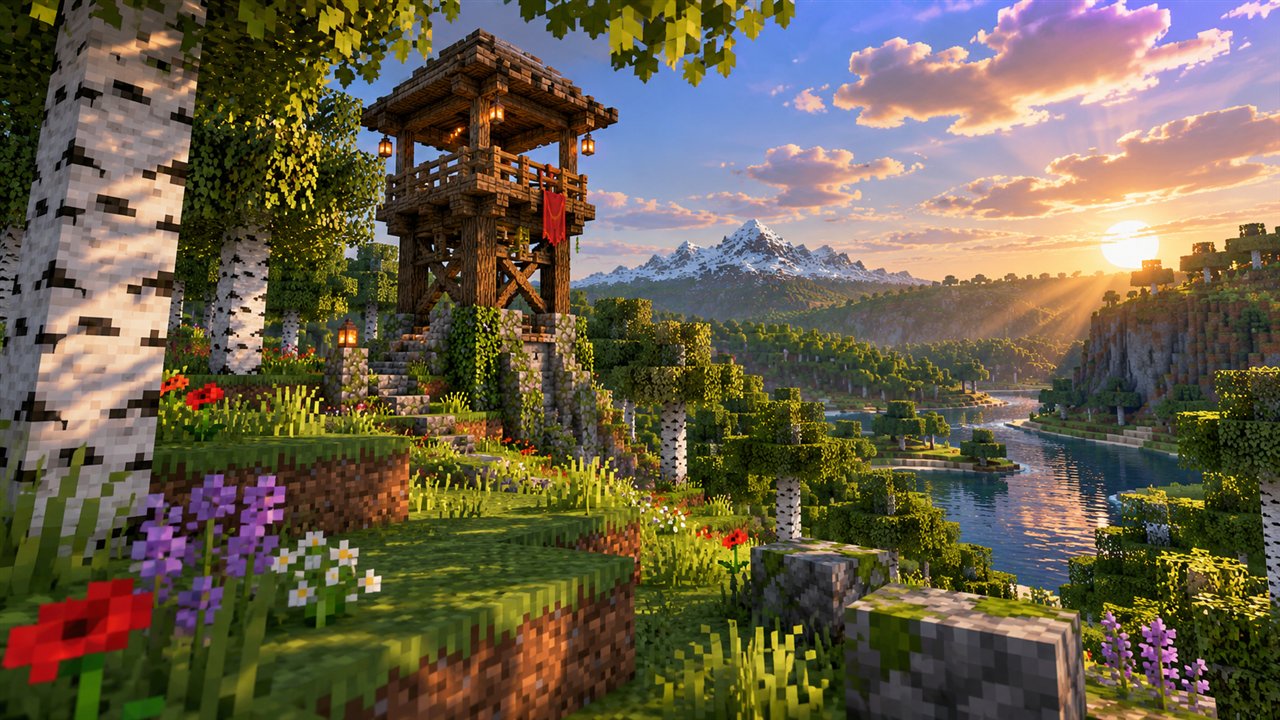
OptiFine 26.1.2 refers to running the OptiFine mod on Minecraft Java Edition 26.1.2, a hotfix update released in April 2026 as part of the game's new year-based numbering. Hotfix updates look small from the outside, yet they matter a great deal for mods like OptiFine that hook into the way Minecraft draws the world.
This guide covers how 26.1.2 fits into the 26.1 family, how to pick the right OptiFine build, how to update existing profiles safely and how to keep shaders and resource packs working after the change.
What Minecraft 26.1.2 Means for OptiFine
Minecraft 26.1.2 is the second fix release in the 26.1 line. It focuses on bug fixes and stability rather than new blocks or features. For players, that means the world feels the same, but internally some code may have changed.
Because OptiFine works so closely with the game's rendering code, even a fix-only update can require a new OptiFine build. The general rule is simple: the version label on your OptiFine download should read 26.1.2 if your game reads 26.1.2.
Choosing the Right OptiFine Build
Open the official OptiFine downloads page and look for the 26.1.2 heading in the version list. If it is present, choose the newest stable build under it. If only a preview build exists, decide whether you are comfortable testing early software or would rather wait.
| Your situation | Recommended action |
|---|---|
| Stable 26.1.2 build listed | Download and install it for everyday play |
| Only a 26.1.2 preview listed | Use it on a test world or backup first |
| No 26.1.2 build yet | Keep playing an earlier version that has a matching build |
| Using Forge | Make sure Forge also supports 26.1.2 |
Updating from 26.1 or 26.1.1
If you already used OptiFine on an earlier 26.1 release, updating is mostly a matter of installing a fresh build. The old profile stays in your launcher, which gives you an easy way to switch back if something goes wrong.
- Back up your saves folder and any custom resource or shader packs.
- Launch vanilla 26.1.2 once so the launcher downloads the new game files.
- Install the OptiFine build made for 26.1.2 using the installer.
- Select the new OptiFine profile and confirm that the game shows the correct version.
Avoid copying old OptiFine files into the new version folder by hand. The installer handles the setup correctly and reduces the chance of mismatched files.
Keeping Your Launcher Profiles Organised
After several updates, the Installations tab can fill up with similar-looking profiles. Clear names make it much easier to choose the right one before pressing Play.
Rename Profiles by Version
Edit each OptiFine installation and give it a name that includes the Minecraft version, such as "OptiFine 26.1.2". This simple habit prevents accidentally launching an old build with a new world.
Use Separate Game Directories
The launcher allows each installation to use its own game directory. Keeping test profiles in a separate folder protects your main worlds and settings while you try a preview build or new shader pack.
Shaders and Resource Packs After Updating
Shader packs are separate from OptiFine and usually keep working across small game updates. However, some packs release updates of their own to fix issues with new versions, so check the shader pack's page if lighting looks broken after moving to 26.1.2.
Resource packs may show a warning that they were made for a different version. Many still load fine, but missing textures or odd colours are a sign that the pack needs an update for the 26.1 family.
If visuals break after updating, switch shaders off first. If the problem disappears, the shader pack needs an update rather than OptiFine.
Troubleshooting OptiFine on 26.1.2
Most issues on hotfix releases come from mixing versions. Work through these checks before reinstalling everything:
- Confirm the OptiFine build label says 26.1.2 and not 26.1 or 26.1.1.
- Make sure the launcher profile points to the OptiFine version, not vanilla.
- Remove other rendering mods temporarily to rule out conflicts.
- Check that Forge, if used, is built for the same release.
For more general fixes, the installation guide lists solutions for profiles that do not appear and installers that will not open.
Hotfix Releases vs Major Releases
Major releases such as 26.1 bring new content and larger code changes, so OptiFine support for them can take longer to appear. Hotfix releases such as 26.1.2 mainly fix bugs, which often makes them quicker to support, although a new build is still required.
Understanding this difference helps you plan updates. Players who need OptiFine every session may choose to stay on a release that already has a stable build, while players who enjoy testing new versions can try previews on a backup world.
| Release type | Typical changes | Effect on OptiFine |
|---|---|---|
| Major release | New features, blocks and systems | New build needed; support may take longer |
| Hotfix release | Bug and stability fixes | New build still needed for reliable use |
OptiFine 26.1.2 FAQs
Does OptiFine for 26.1 work on 26.1.2?
You should not rely on it. Hotfix releases can change code that OptiFine depends on, so use a build that is clearly labelled for 26.1.2.
Do I need to reinstall shaders for 26.1.2?
Usually not. Shader packs stay in the shaderpacks folder of your game directory. If you use a new game directory, copy the packs across.
Is 26.1.2 a good version for OptiFine?
Any version with a stable OptiFine build is a good choice. If 26.1.2 only has preview support, an earlier version with a stable build may be more reliable for now.
Conclusion
OptiFine 26.1.2 works best when you treat the hotfix as its own version: download the build labelled 26.1.2, install it fresh rather than copying old files and keep your profiles clearly named. Preview builds are fine for testing, while stable releases suit long-term worlds.
Take a quick backup before every update and check shader packs separately if visuals change. For the wider picture of the 26.1 family, read our OptiFine Download 26.1 guide, or use the version finder in the download section.