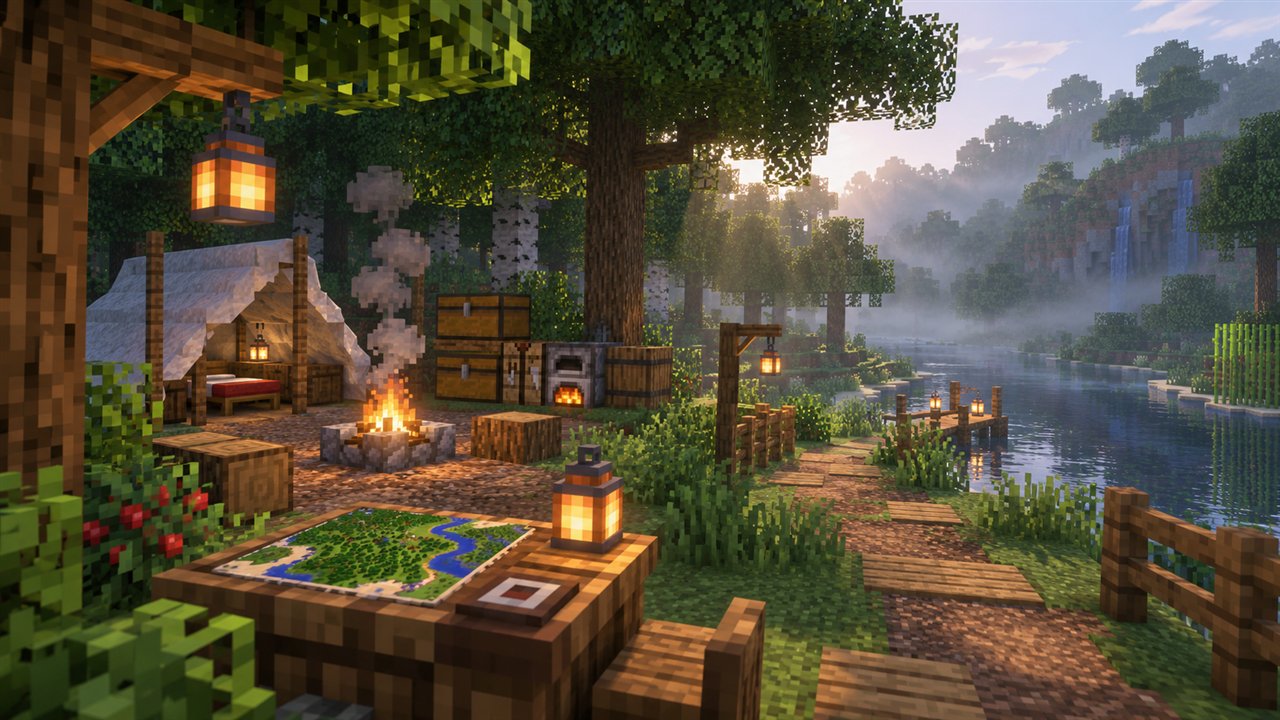
OptiFine Download 26.1 searches have grown since Minecraft Java Edition moved to a new version numbering system in 2026. Instead of continuing with 1.22 and beyond, the game now uses year-based numbers such as 26.1 and 26.1.2, and that change has left many players unsure which OptiFine build to look for and whether one is available yet.
This guide explains how the new numbers work, how to find the OptiFine build that matches a 26.1 release, what preview builds mean and how to install safely without breaking your existing worlds.
Understanding Minecraft's 26.1 Version Numbers
Minecraft's 2026 numbering starts with the last two digits of the year, followed by the release number within that year. A version labelled 26.1 is the first major release of 2026, while 26.1.1 and 26.1.2 are smaller follow-up updates that fix bugs on top of it.
For OptiFine users, the important point is that each of these numbers counts as a separate game version. The table below shows how the old and new naming compare.
| Naming style | Example | What it means |
|---|---|---|
| Classic numbering | 1.20.1, 1.21.1 | Major version 1, update number, then hotfix number |
| Year-based numbering | 26.1 | First release of 2026 |
| Year-based hotfix | 26.1.2 | Second fix update for the 26.1 release |
Why Version Matching Matters for 26.1
OptiFine changes how Minecraft renders the world, so it has to be built against the exact code of each game version. Even small hotfix releases can change internal parts of the game, which means a build made for 26.1 may not load on 26.1.2, and a build for 1.21.x will certainly not work on 26.1.
Using the wrong build usually leads to one of these outcomes:
- The installer refuses to continue because the required version is missing.
- The OptiFine profile appears but the game crashes while loading.
- Minecraft starts without OptiFine features, which means the mod did not load.
Where to Find OptiFine Builds for 26.1
OptiFine releases are published on the official OptiFine website, organised by Minecraft version. Look for a heading that matches your exact release, such as 26.1 or 26.1.2, and choose the newest build listed under it. Builds are named with OptiFine edition codes, but the Minecraft version label is the part that matters most.
If you cannot see your version in the main list, open the preview versions page. New game releases are often supported by preview builds before a stable release appears.
Third-party sites sometimes advertise OptiFine for versions that have no official build yet. Treat those listings with caution and rely on the official download page instead.
Preview Builds vs Stable Releases
When Minecraft releases a major update like 26.1, OptiFine support usually arrives in stages. Preview builds come first so players can test the mod early, and stable releases follow once major problems have been fixed.
When to Use a Preview Build
A preview build is a reasonable choice if you want to try OptiFine on a new version right away and you are comfortable with occasional bugs. Use it on a test world or a backup, not on a long-term survival world you cannot afford to lose.
When to Wait for a Stable Release
If you rely on shaders, large resource packs or Forge mods, waiting for a stable release is usually the safer option. Stable builds tend to have better compatibility and fewer graphical glitches than early previews.
Installing OptiFine on a 26.1 Release
Installation follows the same pattern as older versions. The only extra care needed is confirming that every part of your setup uses the same 26.1 release number.
- Launch your exact 26.1 version once in the Minecraft Launcher, then close it.
- Download the OptiFine build labelled with that version from the official site.
- Open the installer .jar with Java and click Install.
- Select the new OptiFine profile in the launcher and start the game.
For a full step-by-step walkthrough, see our How to Install OptiFine guide.
Using Mod Loaders with 26.1
Players who combine OptiFine with Forge need both tools to support the same 26.1 release. Mod loaders also have to update for new Minecraft versions, so it can take time before matching builds of Forge and OptiFine are both available.
Fabric players should note that OptiFine does not run on Fabric natively. Our OptiFine Fabric guide explains the options, while the OptiFine Forge guide covers the Forge setup.
Checking Your Setup Before Updating
Moving an existing world to a 26.1 release with OptiFine is easier when you prepare first. World files usually upgrade when opened in a newer version, and that change cannot be undone, so a quick checklist protects your progress and your settings.
- Copy your saves folder to a safe location before opening worlds in 26.1.
- Make a note of your favourite OptiFine video settings and shader options.
- Check that your resource packs and shader packs list support for the 26.1 family.
- Keep your previous OptiFine profile in the launcher until the new one works well.
Taking these steps means you can always return to an earlier version if a preview build or new mod combination does not behave as expected.
OptiFine Download 26.1 FAQs
Is there an OptiFine build for every 26.1 hotfix?
Not always at the same time. OptiFine builds are released per version, and support for each hotfix can arrive at a different pace. Check the official list for the exact number you play.
Can I use a 26.1 build on 26.1.2?
It is not recommended. Hotfix updates can change internal game code, so always use a build made for your exact release to avoid crashes or missing features.
Will my old OptiFine settings carry over to 26.1?
Some settings may carry over, but a new version often starts with fresh defaults. Note your preferred settings before updating so you can restore them quickly.
Conclusion
OptiFine Download 26.1 becomes straightforward once you understand that every 26.1 release, including hotfixes like 26.1.2, needs its own matching build. Check your exact version, look for the corresponding entry on the official OptiFine website and decide whether a preview build or a stable release suits your needs.
Keep backups of important worlds, update mod loaders alongside OptiFine and avoid unofficial download sites. When you are ready, use the version finder in our download section to see what to look for.